13. Christmas Jokes
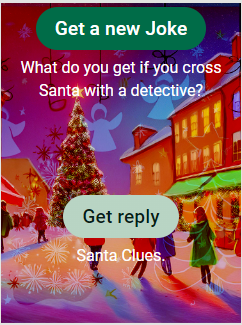
This app displays christmas themed jokes.
It uses a data table created by python using an uplink.
13.1. App Theme
Click Create a new app.
In the Choose Theme window choose Material Design 3.
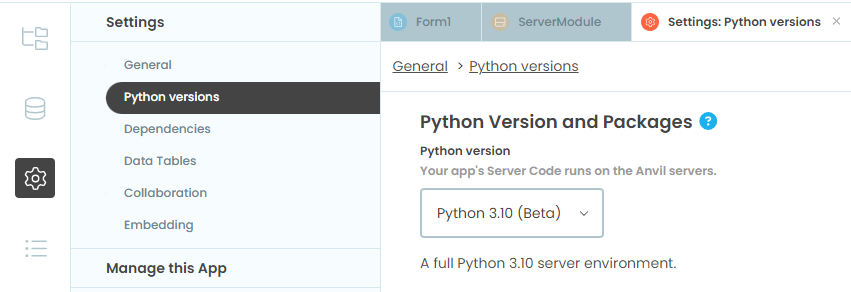
Set the python environment to the latest version.
13.2. Assets
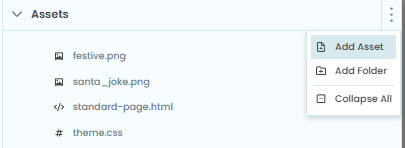
Add image files to assets. First click on the 3 vertical dots to reveal the menu and choose Add Asset. In the Add Asset window, click Choose file and navigate to the image file to add.
Add an image to be used as the background.
festive.png is the image shown in the assets below.
Add an image to be used as the favicon in the browser tab.
santa_joke.png is the image shown in the assets below.
13.3. Components
The initial components are shown below.

Delete the navbar_links FlowPanel.
Add the components below.
The final components are shown below.
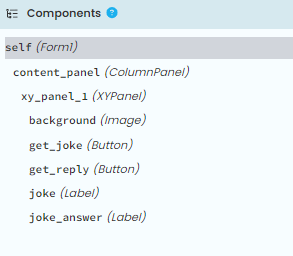
Add an XYPanel to the content_panel. Set this width to 320 and height to 400.
Add an image, then 2 buttons and 2 labels to the XYPanel.
In the image properties name it (self.)back_image.
Set its display_mode to zoom_to_fill.
Set the source to _/theme/festive.png
Set its width to 300, with x set to 0, and y set to 0.
Add a button. Name it (self.)get_joke.
Set its text property to "Get a new joke".
Set its role to filled-button.
Set its font size to 24.
Set its width to 300, with x set to 0, and y set to 0.
In its events property, set click to be "get_joke_click".
Add a button. Name it (self.)get_reply.
Set its text property to "Get reply".
Set its role to tonal-button.
Set its font size to 24.
Set its width to 300, with x set to 0, and y set to 200.
In its events property, set click to be "get_joke_reply_click".
Add a text label. Name it (self.)joke.
Set its foreground to theme:On Primary.
Set its font size to 20.
Set its width to 300, with x set to 0, and y set to 60.
Add a text label. Name it (self.)joke_reply.
Set its foreground to theme:On Secondary.
Set its font size to 20.
Set its width to 300, with x set to 0, and y set to 255.
13.4. Table of jokes
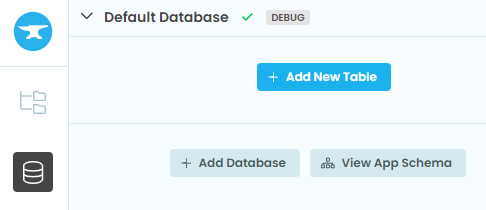
Create a new database table and name it "jokes".
Set Client code access to search this table.
Server code should be set to search, edit and delete.
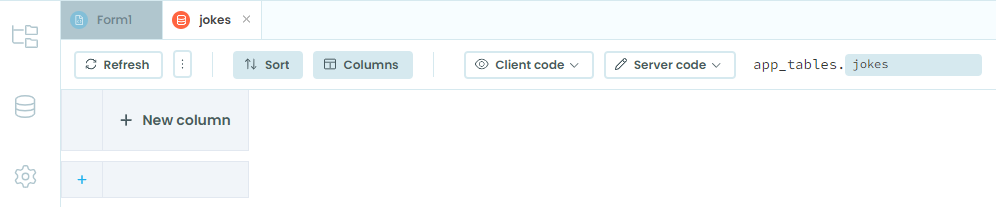
Add 2 New Columns.
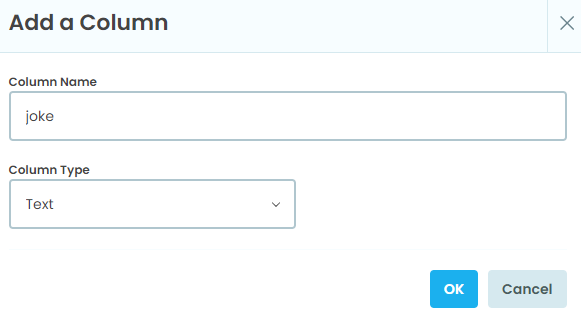
Name them "joke" and "reply".
Set their column type to text in the Add a Column window.
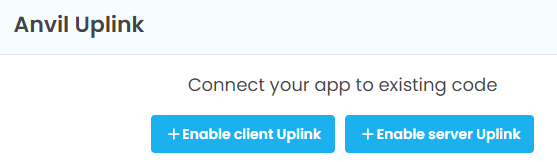
Enable the Uplink in the Anvil IDE using these steps.
Click the + button in the sidebar menu and select Uplink.
Click Enable Server Uplink.
Copy the Server Uplink key and paste into a python script on your local machine.

Run this code on your local machine. Make sure to have pasted in your server uplink key for ANVIL_UPLINK_KEY.
Adjust the file path to the jokes file:
file_path = 'christmas_jokes.txt'import anvil.server
import csv
from anvil.tables import app_tables
# Specify the path to your tab-delimited text file
file_path = 'christmas_jokes.txt'
# Replace with your Anvil Uplink key
ANVIL_UPLINK_KEY = "server_EK....................................F4"
# Connect to the Anvil server
anvil.server.connect(ANVIL_UPLINK_KEY)
print("Uplink connected successfully.") # Confirm connection
@anvil.server.callable
def add_joke_to_database(joke, reply):
"""
Adds a joke and its reply to the Anvil database.
"""
app_tables.jokes.add_row(joke=joke, reply=reply)
def read_jokes_from_file(file_path):
"""
Reads jokes and replies from a tab-delimited file and returns them as a list of tuples.
"""
jokes = []
with open(file_path, 'r', encoding='utf-8') as file:
reader = csv.reader(file, delimiter='\t')
for row in reader:
if len(row) >= 2: # Ensure the row has at least 2 columns
jokes.append((row[0], row[1]))
return jokes
def upload_jokes(file_path):
"""
Reads jokes from a file and uploads them to the Anvil database.
"""
jokes = read_jokes_from_file(file_path)
for joke, reply in jokes:
anvil.server.call('add_joke_to_database', joke, reply)
print(f"Uploaded joke: {joke}")
# Upload jokes to the database
upload_jokes(file_path)
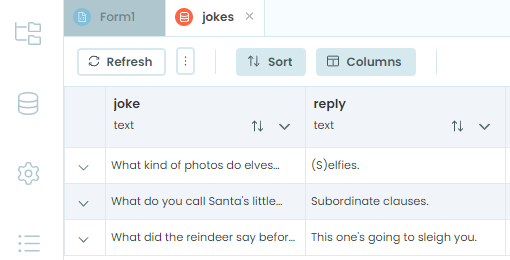
The jokes table will now be filled with jokes.
13.5. Client Code first version
Place the code below in the Form1 code.
Run the code to check that it works.
This code makes a call to the server for each new joke.
from ._anvil_designer import Form1Template
from anvil import *
import anvil.tables as tables
import anvil.tables.query as q
from anvil.tables import app_tables
import anvil.server
import random

class Form1(Form1Template):
    def __init__(self, **properties):
        # Set Form properties and Data Bindings.
        self.init_components(**properties)
        self.joke_text = None
        self.joke_reply_text = None
        self.get_random_joke()

    def get_random_joke(self):
        # Fetch all jokes from the jokes table
        jokes = app_tables.jokes.search()
        # Select a random joke
        random_joke = random.choice(list(jokes))
        # Get the joke and reply from the selected row
        self.joke_text = random_joke['joke']
        self.joke_reply_text = random_joke['reply']
        # Display the joke
        self.place_joke(self.joke_text)

    def get_joke_click(self, **event_args):
        self.get_random_joke()

    def get_joke_reply_click(self, **event_args):
        self.place_joke_reply()

    def place_joke(self, joke_text):
        self.joke.text = joke_text
        self.joke_reply.text = ""

    def place_joke_reply(self):
        self.joke_reply.text = self.joke_reply_text
13.6. Code Notes
Search Result Type:
jokes = app_tables.jokes.search(). Returns a search iterator, not a dictionary or list. You can iterate over it like a generator.Lazy Evaluation: The search iterator fetches rows lazily, making it efficient for large datasets.
Converting to a List:
jokes_list = list(app_tables.jokes.search())Random Row Example:
random_joke = random.choice(jokes_list)Accessing Rows:
random_joke['joke'], random_joke['reply']. Each row is dictionary-like.
13.7. Client Code final version
Place the code below in the Form1 code.
Run the code to check that it works.
This code makes one call to the server to get all the jokes.
It shuffles all the jokes and after all have been shown, reshuffles them.
This guarantees no repeats until all jokes have been shown.
from ._anvil_designer import Form1Template
from anvil import *
import anvil.tables as tables
import anvil.tables.query as q
from anvil.tables import app_tables
import anvil.server
import random


class Form1(Form1Template):
    def __init__(self, **properties):
        self.init_components(**properties)

        # Load all jokes into memory ONCE
        self.all_jokes = list(app_tables.jokes.search())

        # Create a shuffled deck of jokes
        self.shuffle_jokes()

        # Index of the next joke in the deck
        self.deck_index = 0

        # Current joke
        self.current_joke = None
        self.current_reply = None

        # Preloaded next joke
        self.next_joke = None
        self.next_reply = None

        # Preload and show first joke
        self.preload_next_joke()
        self.show_next_joke()

    # -----------------------------
    # SHUFFLE THE JOKES (no repeats)
    # -----------------------------
    def shuffle_jokes(self):
        self.joke_deck = self.all_jokes[:]   # copy
        random.shuffle(self.joke_deck)
        self.deck_index = 0

    # -----------------------------
    # PRELOAD NEXT JOKE (from deck)
    # -----------------------------
    def preload_next_joke(self):
        # If we've reached the end, reshuffle
        if self.deck_index >= len(self.joke_deck):
            self.shuffle_jokes()

        row = self.joke_deck[self.deck_index]
        self.deck_index += 1

        self.next_joke = row['joke']
        self.next_reply = row['reply']

    # -----------------------------
    # SHOW THE PRELOADED JOKE
    # -----------------------------
    def show_next_joke(self):
        self.current_joke = self.next_joke
        self.current_reply = self.next_reply

        self.joke.text = self.current_joke
        self.joke_reply.text = ""

        # Preload the next one immediately
        self.preload_next_joke()

    # -----------------------------
    # BUTTON HANDLERS
    # -----------------------------
    def get_joke_click(self, **event_args):
        self.show_next_joke()

    def get_joke_reply_click(self, **event_args):
        self.joke_reply.text = self.current_reply