9. tk Menu
9.1. Overview
The
tk.Menu widget creates menus in a Tkinter application.It can be used to create:
* a menu bar attached to the main application window,* pull-down submenus,* shortcut (context) menus that appear when the user right-clicks.
To create a menu widget, the general syntax is
(assuming import via "import tkinter as tk"):
- menu_widget = tk.Menu(parent, option=value)
- *
parentis the parent window or anotherMenuwidget (or a menubutton widget).*option=valuespecifies one or more configuration options.
Menus are normally attached to a
tk.Tk window using ``root.config(menu=menubar)`Submenus are attached to another
Menu using add_cascade().---
9.2. Sample Menu
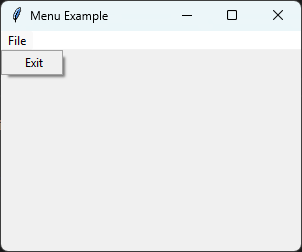
The code below creates a simple file menu with an "Exit" command.
import tkinter as tk

root = tk.Tk()
root.title("Menu Example")
root.geometry("300x200")

# 1. Create the main Menu bar
menubar = tk.Menu(root)
root.config(menu=menubar)

# 2. Create a "File" submenu
file_menu = tk.Menu(menubar, tearoff=0)
menubar.add_cascade(label="File", menu=file_menu)

# 3. Add commands to the "File" submenu
file_menu.add_command(label="Exit", command=root.destroy)

root.mainloop()
Tasks
Modify the code to create the menu shown below.
Add a File menu to the menu bar.
Add the menu commands New, Open, and Exit.
Insert a separator between Open and Exit.
Disable the tear-off feature.
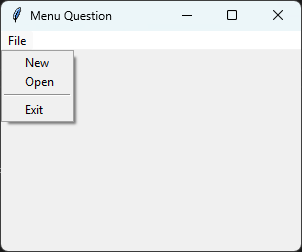
Modify the code so it creates the menu shown above.
import tkinter as tk

root = tk.Tk()
root.title("Menu Question")
root.geometry("300x200")

# Create the menu bar
menubar = tk.Menu(root)
root.config(menu=menubar)

# Create the File menu
file_menu = tk.Menu(menubar, tearoff=0)

# Add the File menu to the menu bar
menubar.add_cascade(label="File", menu=file_menu)

# Add menu commands
file_menu.add_command(label="New")
file_menu.add_command(label="Open")
file_menu.add_separator()
file_menu.add_command(label="Exit", command=root.destroy)

root.mainloop()
9.4. Parameter syntax
- menu_widget = tk.Menu(parent, option=value)
Parameters:
- activebackground
- Syntax:
menu_widget.config(activebackground="color")Description: Background color of the item when active or hovered.Default: SystemHighlight
- activeforeground
- Syntax:
menu_widget.config(activeforeground="color")Description: Text color of the item when active or hovered.Default: SystemHighlightText
- background or bg
- Syntax:
menu_widget.config(bg="color")Description: Background color of the menu.
- font
- Syntax:
menu_widget.config(font=("FontName", size, style))Description: Font of the menu items.
- fg or foreground
- Syntax:
menu_widget.config(fg="color")Description: Text color of the menu items.
- tearoff
- Syntax:
menu_widget.config(tearoff=boolean)Description: Whether the menu can be "torn off" into a separate window.Default: 1
Note
tearoff=0 disables the dashed line that allows a menu to be
detached into its own window. Most modern applications set this
option to 0.
9.5. Default options
Code to display the default value for each
Menu option is shown below.import tkinter as tk
root = tk.Tk()
widget = tk.Menu(root)
widget_options = widget.keys()
for option in widget_options:
print(f"{option}: {widget.cget(option)}") # cget retrieves the current value of the option