10. tk Menubutton
10.1. Overview
The
tk.Menubutton widget creates a button that displays a menu when clicked.It is useful for creating drop-down buttons, toolbar menus, and option selectors.
Unlike
tk.Menu, a Menubutton is a visible widget placed inside a window.To create a Menubutton widget, the general syntax is
(assuming import via "import tkinter as tk"):
- menubutton_widget = tk.Menubutton(parent, option=value)
- *
parentis the window or frame object.*option=valuespecifies one or more configuration options.
A menu is attached to a Menubutton using
menu=menu_widget.- menu_widget = tk.Menu(parent, option=value)
- *
parentis the menubutton widget.*option=valuespecifies one or more configuration options.
10.2. Sample Menubutton
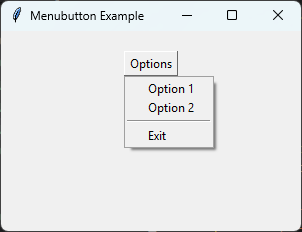
The code below creates a Menubutton with a drop-down menu.
import tkinter as tk

root = tk.Tk()
root.title("Menubutton Example")
root.geometry("300x200")

menubutton = tk.Menubutton(
    root,
    text="Options",
    relief="raised"
)

# Create the menu owned by the Menubutton
menu = tk.Menu(menubutton, tearoff=0)

menu.add_command(label="Option 1")
menu.add_command(label="Option 2")
menu.add_separator()
menu.add_command(label="Exit", command=root.destroy)

# Attach the menu
menubutton.config(menu=menu)

menubutton.pack(padx=20, pady=20)

root.mainloop()
Tasks
Modify the code to create the Menubutton shown below.
Create a Menubutton labelled Colours.
Add menu options Red, Green, and Blue.
Add a separator before the final option.
Add an Exit command that closes the window.
Colour the Red, Green, and Blue options red, green, and blue respectively using the entryconfig method.
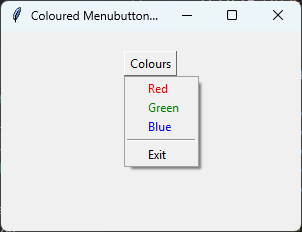
Modify the code so it creates the Menubutton shown above.
import tkinter as tk

root = tk.Tk()
root.title("Coloured Menubutton Example")
root.geometry("300x200")

# Create the Menubutton
menubutton = tk.Menubutton(
    root,
    text="Colours",
    relief="raised"
)

# Create the menu
colour_menu = tk.Menu(menubutton, tearoff=0)

colour_menu.add_command(label="Red")
colour_menu.add_command(label="Green")
colour_menu.add_command(label="Blue")
colour_menu.add_separator()
colour_menu.add_command(label="Exit", command=root.destroy)

# Colour individual menu entries
colour_menu.entryconfig("Red", foreground="red")
colour_menu.entryconfig("Green", foreground="green")
colour_menu.entryconfig("Blue", foreground="blue")

menubutton.config(menu=colour_menu)

menubutton.pack(padx=20, pady=20)

root.mainloop()
10.5. Parameter syntax
- menubutton_widget = tk.Menubutton(parent, option=value)
Parameters:
- activebackground
- Syntax:
menubutton_widget.config(activebackground="color")Description: Background colour when the mouse is over the button.Default: SystemButtonFace
- activeforeground
- Syntax:
menubutton_widget.config(activeforeground="color")Description: Text colour when the mouse is over the button.Default: SystemButtonText
- anchor
- Syntax:
menubutton_widget.config(anchor="position")Description: Controls where the text is positioned inside the widget.Default: center
- background
- bg
- Syntax:
menubutton_widget.config(bg="color")Description: Sets the background colour.Default: SystemButtonFace
- bd
- borderwidth
- Syntax:
menubutton_widget.config(borderwidth=value)Description: Sets the border width.Default: 2
- compound
- Syntax:
menubutton_widget.config(compound="position")Description: Controls the position of text relative to an image.Default: none
- cursor
- Syntax:
menubutton_widget.config(cursor="cursor_type")Description: Sets the mouse cursor.Example:cursor="hand2"
- direction
- Syntax:
menubutton_widget.config(direction="direction")Description: Controls where the menu appears relative to the button.Possible values:above,below,left,right
- font
- Syntax:
menubutton_widget.config(font=("Font", size))Description: Sets the font used for the button text.
- foreground
- fg
- Syntax:
menubutton_widget.config(fg="color")Description: Sets the text colour.
- height
- Syntax:
menubutton_widget.config(height=value)Description: Sets the height of the widget.
- image
- Syntax:
menubutton_widget.config(image=image_object)Description: Displays an image on the button.
- indicatoron
- Syntax:
menubutton_widget.config(indicatoron=boolean)Description: Displays a small indicator arrow when enabled.Default: 1
- justify
- Syntax:
menubutton_widget.config(justify="alignment")Description: Controls multi-line text alignment.
- Syntax:
menubutton_widget.config(menu=menu_widget)Description: Attaches a Menu widget to the Menubutton.
- padx
- Syntax:
menubutton_widget.config(padx=value)Description: Sets horizontal internal padding.
- pady
- Syntax:
menubutton_widget.config(pady=value)Description: Sets vertical internal padding.
- relief
- Syntax:
menubutton_widget.config(relief="style")Description: Sets the border style.Default: raised
- state
- Syntax:
menubutton_widget.config(state="state")Description: Sets the widget state.Values:normalordisabled
- text
- Syntax:
menubutton_widget.config(text="label")Description: Sets the displayed text.
- textvariable
- Syntax:
menubutton_widget.config(textvariable=variable)Description: Associates a Tkinter variable with the button text.
- underline
- Syntax:
menubutton_widget.config(underline=index)Description: Underlines the specified character in the text.
- width
- Syntax:
menubutton_widget.config(width=value)Description: Sets the width of the widget.
10.6. Default options
Code to display the default values for each
Menubutton option is shown below.import tkinter as tk
root = tk.Tk()
widget = tk.Menubutton(root)
for option in widget.keys():
print(f"{option}: {widget.cget(option)}")