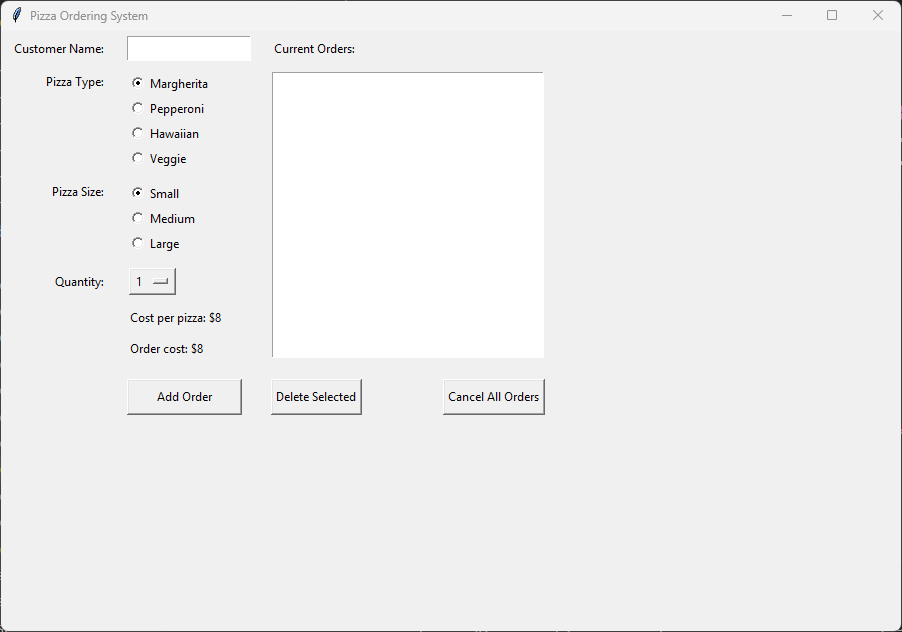
9. Deleting Orders

../_images/pizza_8.png
  • Objective: Add functionality to delete orders.

  • Content:

    • Creating a delete order button.

    • Creating a cancel order button.

    • Writing the delete_selected_pizza function.

    • Writing the cancel_order Function


9.1. Creating a Delete Order Button

Place the following code below the other widget code in Section "4. TKINTER WIDGETS".
This code creates a button labeled "Delete Selected" that, when clicked, will call the delete_selected_pizza function to remove the selected pizza from the order list.
# Action Button: Delete Selected
 delete_pizza_button = tk.Button(root, text="Delete Selected", command=delete_selected_pizza)
 delete_pizza_button.grid(row=6, column=2, padx=10, pady=15, ipady=5, sticky="w")
  • delete_pizza_button = tk.Button(root, text="Delete Selected Pizza", command=delete_selected_pizza): Creates a button labeled "Delete Selected Pizza" and sets the command to delete_selected_pizza, which will be executed when the button is clicked.

  • delete_pizza_button.grid(row=6, column=2, padx=10,  pady=5, ipadx=20, ipady=10,sticky="w"): Places the button in the grid layout at row 6, column 2 and adds external padding around the button: 10 pixels on the x-axis (padx),and 5 pixels on the y-axis (ipady), and 20 pixels inside the button on the x-axis (ipadx), 10 pixels inside the button on the y-axis (ipady), and aligns the button to the west (left) side of the cell (sticky="w").


9.2. Creating a Cancel Order Button

Place the following code below the other widget code in Section "4. TKINTER WIDGETS".
This code creates a button labeled "Cancel All Orders" that, when clicked, will call the cancel_order function to remove all orders from the order list.
# Action Button: Cancel All Orders
cancel_order_button = tk.Button(root, text="Cancel All Orders", command=cancel_order)
cancel_order_button.grid(row=6, column=3, padx=10, pady=15, ipady=5, sticky="e")
  • cancel_order_button = tk.Button(root, text="Cancel Orders", command=cancel_order): creates a button labeled "Cancel Orders", and sets the command to cancel_order, which will be executed when the button is clicked.

  • cancel_order_button.grid(row=6, column=3, padx=10, pady=5, ipadx=20, ipady=10, sticky="e"): Places the button in the grid layout at row 6, column 3 and adds padding around the button: 10 pixels on the x-axis (padx), 20 pixels inside the button on the x-axis (ipadx), 10 pixels inside the button on the y-axis (ipady), and 5 pixels on the y-axis (pady)and aligns the button to the east (right) side of the cell (sticky="e").


9.3. Writing the delete_selected_pizza Function

Place the following code in Section "3. DEFINITIONS / FUNCTIONS".
This function, delete_selected_pizza, is responsible for removing the selected pizza from the order list.
It first checks if an item is selected in the order_list Listbox.
If no item is selected, it shows an error message.
If an item is selected, it checks if the selected item is the total cost line (the last line in the Listbox) and prevents deletion if it is.
Otherwise, it deletes the selected order from the orders list and updates the displayed order list.
# Delete selected pizza
def delete_selected_pizza():
    """Removes the selected item from the order list."""
    order_selection = order_list.curselection()
    if not order_selection:
        messagebox.showerror("Input Error", "Please select a pizza to delete.")
    else:
        order_index = order_selection[0]
        # Block deleting the dynamic total line
        if order_index == order_list.size() - 1:
            messagebox.showerror("Input Error", "Cannot delete the total cost line.")
        else:
            del orders[order_index]
            update_order_list()
  • order_selection = order_list.curselection(): Gets the index of the selected item in the Listbox as a tuple like (0,) for line 0, or (1, ) for line 1 or (0, 1, 2) for lines 0 to 2.

  • messagebox.showerror("Input Error", "Please select a pizza to delete."): Shows an error message if no pizza is selected.

  • order_index = order_selection[0] gets the selected line number from the tuple at index 0.

  • if order_index == order_list.size() - 1: messagebox.showerror("Input Error", "Cannot delete the total cost line."): Shows an error message if the selected item is the total cost line.

  • del orders[order_index]: Deletes the selected order from the orders list.


9.4. Writing the cancel_order Function

Place the following code in Section "3. DEFINITIONS / FUNCTIONS".
This function, cancel_order, is responsible for clearing all orders from the order list.
It clears the orders list and then calls update_order_list() to refresh the displayed order list, effectively removing all orders from the display.
# Cancel whole order
def cancel_order():
    orders.clear()
    update_order_list()
  • orders.clear: empties the list of orders.

  • update_order_list(): updates the displayed order, which in effect clears it.