13. tk PanedWindow
13.1. Usage
The tkinter.PanedWindow widget is a container that allows the user to resize child widgets by dragging a separator (sash).
It is useful for creating layouts where the user controls the relative size of sections of the window.
Paned windows can be arranged horizontally or vertically.
To create a paned window the general syntax is
(assuming import via "import tkinter as tk"):
- panedwindow_widget = tk.PanedWindow(parent, option=value)
- parent is the window or frame object.Options can be passed as parameters separated by commas.
Child widgets are added to a
PanedWindow using the add() method.13.2. Sample PanedWindow
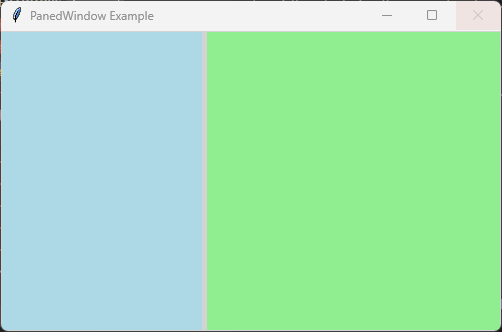
The code below creates a horizontal
PanedWindow containing two frames.The user can drag the divider between the frames to resize them.
import tkinter as tk

root = tk.Tk()
root.title("PanedWindow Example")
root.geometry("500x300")

# Create the PanedWindow
paned = tk.PanedWindow(
    root,
    orient="horizontal",
    sashwidth=5,
    bg="lightgray"
)

paned.pack(fill="both", expand=True)

# Create child frames
left_frame = tk.Frame(
    paned,
    bg="lightblue",
    width=200,
    height=200
)

right_frame = tk.Frame(
    paned,
    bg="lightgreen",
    width=200,
    height=200
)

# Add frames to the PanedWindow
paned.add(left_frame)
paned.add(right_frame)

root.mainloop()
Tasks
Modify the code so that it creates a vertical
PanedWindowcontaining three frames.Arrange the frames from top to bottom.
Set the top frame background to light blue.
Set the middle frame background to light yellow.
Set the bottom frame background to light green.
Add all three frames to the
PanedWindow.Set the minimum size of each pane to 50 pixels.
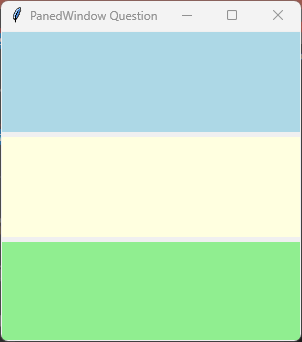
Modify the code so that it creates a vertical PanedWindow containing three resizable frames.
import tkinter as tk

# Create the main window
root = tk.Tk()
root.title("PanedWindow Question")
root.geometry("300x310")

# Create the PanedWindow
paned = tk.PanedWindow(
    root,
    orient="vertical",
    sashwidth=5
)

paned.pack(fill="both", expand=True)

# Create three frames
top_frame = tk.Frame(
    paned,
    bg="light blue",
    width=300,
    height=100
)

middle_frame = tk.Frame(
    paned,
    bg="light yellow",
    width=300,
    height=100
)

bottom_frame = tk.Frame(
    paned,
    bg="light green",
    width=300,
    height=100
)

# Add frames to the PanedWindow
paned.add(top_frame, minsize=50)
paned.add(middle_frame, minsize=50)
paned.add(bottom_frame, minsize=50)

# Run the main event loop
root.mainloop()
13.3. Methods
- panedwindow_widget.add(child_widget, option=value)
- Adds a child widget to the PanedWindow.The child widget becomes one of the resizable sections.Example:
paned.add(frame1)
- panedwindow_widget.remove(child_widget)
- Removes a child widget from the PanedWindow.Example:
paned.remove(frame1)
- panedwindow_widget.forget(child_widget)
- Removes a child widget from the PanedWindow.The widget is removed but not destroyed.Example:
paned.forget(frame1)
- panedwindow_widget.paneconfig(child_widget, option=value)
- Changes the configuration options for a child widget inside the PanedWindow.Example:
paned.paneconfig(frame1, minsize=100)
- panedwindow_widget.paneconfigure(child_widget, option=value)
- Alternative name for
paneconfig().Updates options for a specific child pane.
- panedwindow_widget.panes()
- Returns a tuple containing the widgets managed by the PanedWindow.Example:
print(paned.panes())
- panedwindow_widget.sash_coord(index)
- Returns the current x and y coordinates of a sash.Example:
x, y = paned.sash_coord(0)
- panedwindow_widget.sash_place(index, x, y)
- Moves a sash to a specified position.Example:
paned.sash_place(0, 150, 0)
13.4. Parameter syntax
The main options are below.
- panedwindow_widget = tk.PanedWindow(parent, option=value)
Parameters:
- background
- bg
- Syntax:
panedwindow_widget = tk.PanedWindow(parent, bg="color")Description: Sets the background colour of the PanedWindow.Default: SystemButtonFace
- borderwidth
- bd
- Syntax:
panedwindow_widget = tk.PanedWindow(parent, bd=width)Description: Sets the width of the border around the PanedWindow.Default:2
- cursor
- Syntax:
panedwindow_widget = tk.PanedWindow(parent, cursor="cursor_type")Description: Sets the mouse cursor when hovering over the PanedWindow.
- handlepad
- Syntax:
panedwindow_widget = tk.PanedWindow(parent, handlepad=value)Description: Sets the distance between the sash and the resize handle.Default:8
- handlesize
- Syntax:
panedwindow_widget = tk.PanedWindow(parent, handlesize=value)Description: Sets the size of the sash resize handle.Default:8
- orient
- Syntax:
panedwindow_widget = tk.PanedWindow(parent, orient="orientation")Description: Sets the direction of the panes.Values:-"horizontal": panes arranged left to right.-"vertical": panes arranged top to bottom.Default:horizontal
- relief
- Syntax:
panedwindow_widget = tk.PanedWindow(parent, relief="style")Description: Sets the border style.Values includeflat,raised,sunken,ridge,solidandgroove.Default:raised
- sashcursor
- Syntax:
panedwindow_widget = tk.PanedWindow(parent, sashcursor="cursor_type")Description: Sets the cursor displayed over the sash.Example:sashcursor="sb_h_double_arrow"
- sashpad
- Syntax:
panedwindow_widget = tk.PanedWindow(parent, sashpad=value)Description: Sets padding around the sash.Default:0
- sashrelief
- Syntax:
panedwindow_widget = tk.PanedWindow(parent, sashrelief="style")Description: Sets the relief style of the sash.Default:flat
- sashwidth
- Syntax:
panedwindow_widget = tk.PanedWindow(parent, sashwidth=value)Description: Sets the width of the sash divider.Default:2
- showhandle
- Syntax:
panedwindow_widget = tk.PanedWindow(parent, showhandle=True)Description: Displays the resize handle on the sash.Default:False
- width
- Syntax:
panedwindow_widget = tk.PanedWindow(parent, width=value)Description: Sets the requested width of the PanedWindow.
- height
- Syntax:
panedwindow_widget = tk.PanedWindow(parent, height=value)Description: Sets the requested height of the PanedWindow.
13.5. Default options
Code to display the default value for each
PanedWindow option is shown below.import tkinter as tk
root = tk.Tk()
widget = tk.PanedWindow(root)
widget_options = widget.keys()
for option in widget_options:
print(f"{option}: {widget.cget(option)}")