3. Fibonacci numbers
See working app at: ****************
3.1. References
3.2. Design
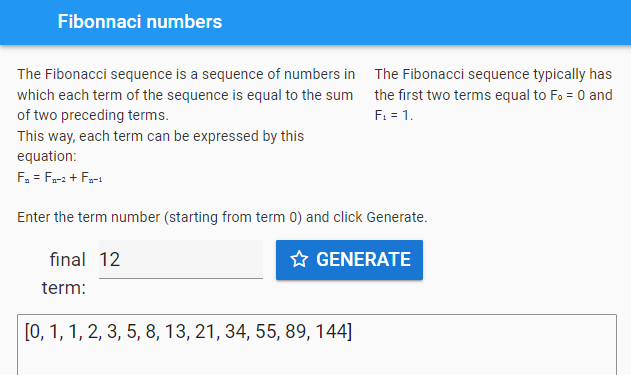
3.3. Get started
Click: Blank App.
Choose: Material Design
3.4. Settings
Click on the cog icon to show the settings tab.
Enter an App name. Fibonacci_numbers
Enter an App title. Fibonacci_numbers
Enter an App description. Fibonacci_numbers are a sequence of odd and even positive integers.
Close the settings tab.
3.5. Build interface
3.5.1. Title
3.5.2. Column panel
3.5.3. Info
Fibonacci numbers are a sequence of odd and even positive integers.
The values typically rise and fall, like a Fibonacci inside a cloud.
e.g. 6, 3, 10, 5, 16, 8, 4, 2, 1
3.5.4. Rules
3.5.5. Directions
3.5.6. Fibonacci_start
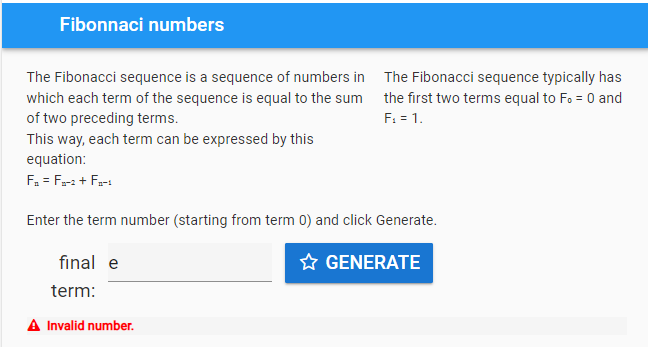
3.5.8. Error field
3.5.9. Length_label
3.5.10. Length
3.5.11. Start_label
3.5.12. Fibonacci_numbers
3.6. Initial Code
class Form1(Form1Template):

    def __init__(self, **properties):
        # Set Form properties and Data Bindings.
        self.init_components(**properties)
        # hide error field and output fields
        self.error.visible = False
        self.set_main_field_vis(False)

    def set_main_field_vis(self, vis_bool):
        self.length_label.visible = vis_bool
        self.length.visible = vis_bool
        self.Fibonacci_numbers.visible = vis_bool
3.7. Event Code
def generate_click(self, **event_args):
    self.generate()

def Fibonacci_start_pressed_enter(self, **event_args):
    self.generate()
3.8. Fibonacci Code
def Fibonacci(self, num):
    # return list of numbers
    Fibonacci_list = [num]
    while num > 1:
        if Fibonacci_list[-1] == 1:
            return Fibonacci_list
        else:
            if Fibonacci_list[-1] % 2 == 0:
                new_num = int(Fibonacci_list[-1] / 2)
            else:
                new_num = (Fibonacci_list[-1] * 3) + 1
            Fibonacci_list.append(new_num)
    return Fibonacci_list
3.9. Checking the input
def test_integer(self):
    # str(invalid entries) give the string 'None'
    if str(self.Fibonacci_start.text) == 'None':
        return "Invalid number."
    # invalid entries give False, so not False is True
    if not self.Fibonacci_start.text:
        return "Not a valid start number."
    # catch 0, negative ints and floats below 1
    if self.Fibonacci_start.text < 1:
        return "Enter a whole number above 0."
    # floats
    if self.Fibonacci_start.text != int(self.Fibonacci_start.text):
        return "Positive Integers, not floats are needed."
    # have an int, no error
    return None
3.10. Generate Code
def generate(self):
    # hide error and clear it
    self.error.visible = False
    self.error.text = ""
    # check for error and display it if present
    error = self.test_integer()
    if error:
        self.error.text = error
        self.error.visible = True
        self.length.text = ""
        self.Fibonacci_numbers.text = ""
        self.set_output_field_vis(False)
        return
    # continue if no error
    hns = self.Fibonacci(self.Fibonacci_start.text)
    self.Fibonacci_numbers.text = hns
    self.length.text = len(hns)
    self.set_output_field_vis(True)

def test_integer(self):
    # str(invalid entries) give the string 'None'
    if str(self.Fibonacci_start.text) == 'None':
        return "Invalid number."
    # invalid entries give False, so not False is True
    if not self.Fibonacci_start.text:
        return "Not a valid start number."
    # catch 0, negative ints and floats below 1
    if self.Fibonacci_start.text < 1:
        return "Enter a whole number above 0."
    # floats
    if self.Fibonacci_start.text != int(self.Fibonacci_start.text):
        return "Positive Integers, not floats are needed."
    # have an int, no error
    return None

def Fibonacci(self, num):
    # return list of numbers
    Fibonacci_list = [num]
    while num > 1:
        if Fibonacci_list[-1] == 1:
            return Fibonacci_list
        else:
            if Fibonacci_list[-1] % 2 == 0:
                new_num = int(Fibonacci_list[-1] / 2)
            else:
                new_num = (Fibonacci_list[-1] * 3) + 1
            Fibonacci_list.append(new_num)
    return Fibonacci_list
3.11. Final Code
from anvil import *
import anvil.tables as tables
import anvil.tables.query as q
from anvil.tables import app_tables

class Form1(Form1Template):

    def __init__(self, **properties):
        # Set Form properties and Data Bindings.
        self.init_components(**properties)
        # hide error field and output fields
        self.error.visible = False
        self.set_output_field_vis(False)

    def set_output_field_vis(self, vis_bool):
        self.length_label.visible = vis_bool
        self.length.visible = vis_bool
        self.Fibonacci_numbers.visible = vis_bool

    def Fibonacci_start_change(self, **event_args):
        if self.Fibonacci_start.text:
            self.Fibonacci_start.text = min(100000, self.Fibonacci_start.text)

    def generate_click(self, **event_args):
        self.generate()

    def Fibonacci_start_pressed_enter(self, **event_args):
        self.generate()

    def generate(self):
        # hide error and clear it
        self.error.visible = False
        self.error.text = ""
        # check for error and display it if present
        error = self.test_integer()
        if error:
            self.error.text = error
            self.error.visible = True
            self.length.text = ""
            self.Fibonacci_numbers.text = ""
            self.set_output_field_vis(False)
            return
        # continue if no error
        hns = self.Fibonacci(self.Fibonacci_start.text)
        self.Fibonacci_numbers.text = hns
        self.length.text = len(hns)
        self.set_output_field_vis(True)

    def test_integer(self):
        # str(invalid entries) give the string 'None'
        if str(self.Fibonacci_start.text) == 'None':
            return "Invalid number."
        # invalid entries give False, so not False is True
        if not self.Fibonacci_start.text:
            return "Not a valid start number."
        # catch 0, negative ints and floats below 1
        if self.Fibonacci_start.text < 1:
            return "Enter a whole number above 0."
        # floats
        if self.Fibonacci_start.text != int(self.Fibonacci_start.text):
            return "Positive Integers, not floats are needed."
        # have an int, no error
        return None

    def Fibonacci(self, num):
        # return list of numbers
        Fibonacci_list = [num]
        while num > 1:
            if Fibonacci_list[-1] == 1:
                return Fibonacci_list
            else:
                if Fibonacci_list[-1] % 2 == 0:
                    new_num = int(Fibonacci_list[-1] / 2)
                else:
                    new_num = (Fibonacci_list[-1] * 3) + 1
                Fibonacci_list.append(new_num)
        return Fibonacci_list
Tasks
Limit the initial input to under 100000.
Limit the initial input to under 100000.
def Fibonacci_start_change(self, **event_args):
    if self.Fibonacci_start.text:
        self.Fibonacci_start.text = min(100000, self.Fibonacci_start.text)
Tasks
The longest sequence is 351 for Fibonacci(77031) for numbers <100,000. Find another Fibonacci number under 100000 with a sequence length over 200.
Advanced: Create a list of multipliers to replace the 3 multiplier. Add a textbox to enable the user to enter the multiplier. Restrict the values to 1, 3, 5, 7 or 9. e.g 3, 5 or 1, 3, 7. Randomly choose form this list when generating each new number in the Fibonacci sequence.
The longest sequence is 351 for Fibonacci(77031) for numbers <100,000. Find another Fibonacci number under 100000 with a sequence length over 200.
Look at the sequence for Fibonacci(77031) and find the the next number under 100000. It has a sequence length of 206.
Advanced: Create a list of multipliers to replace the 3 multiplier. Add a textbox to enable the user to enter the multiplier. Restrict the values to 1, 3, 5, 7 or 9. e.g 3, 5 or 1, 3, 7. Randomly choose form this list when generating each new number in the Fibonacci sequence.
Working app at: https://pc-Fibonacci-random-multipliers.anvil.app
# code to allow random choice from a list

from random import choice

# code to insert in def generate(self):

def generate(self):
    ...
    # check for error in multiplier and display it if present
    error = self.test_multiplier()
    if error:
    self.error.text = error
    self.error.visible = True
    self.length.text = ""
    self.Fibonacci_numbers.text = ""
    self.set_output_field_vis(False)
    return
    ...

# code to text multiplier input

 def test_multiplier(self):
    try:
    multiplier_list = self.multiplier.text
    multiplier_list = multiplier_list.split(",")
    multiplier_list = [int(x) for x in multiplier_list if int(x) % 2 == 1 and int(x) < 10 and int(x) > 0]
    if len(multiplier_list) == 0:
        multiplier_list = [3]
        self.multiplier_list = multiplier_list
        self.multiplier.text = str(multiplier_list).strip('[]')
        print(self.multiplier.text)
        return None
    except ValueError as error:
        self.multiplier_list = None
        return "multiplier requires positive integers separated by commas."
    except IndexError as error:
        self.multiplier_list = None
        return "multiplier requires positive integers separated by commas."

# code to generate Fibonacci using **choice(self.multiplier_list)**

def Fibonacci(self, num):
    # return list of numbers
    Fibonacci_list = [num]
    while num > 1:
        if Fibonacci_list[-1] == 1:
            return Fibonacci_list
        else:
            if Fibonacci_list[-1] % 2 == 0:
                new_num = int(Fibonacci_list[-1] / 2)
            else:
                multiplier = choice(self.multiplier_list)
                new_num = (Fibonacci_list[-1] * multiplier) + 1
            Fibonacci_list.append(new_num)
            if len(Fibonacci_list) > 1000:
                return Fibonacci_list
    return Fibonacci_list