2. Fahrenheit to Celsius
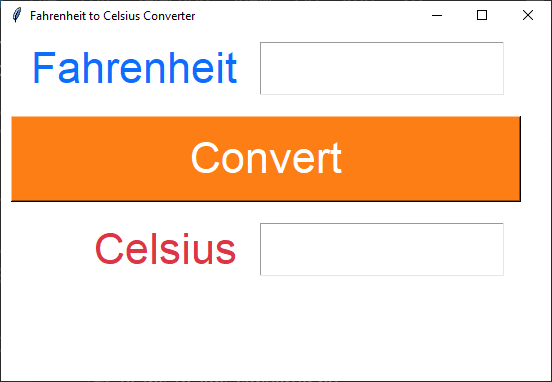
This code converts Fahrenheit to Celsius temperatures.
This code creates a simple GUI application using the Tkinter library.
It displays a window with Label, Entry, Text and Button widgets
This tutorial will guide you through developing a Fahrenheit to Celsius converter using Tkinter in Python. We'll start with a basic setup and gradually add components to build the final application.
2.1. Basic window setup
Start with the basic setup of the Tkinter window and start the main event loop.
import tkinter as tk

# Create the main window
root = tk.Tk()
root.title("Fahrenheit to Celsius Converter")
root.geometry("550x350")
root.configure(bg="#ffffff")

# Start the main event loop
root.mainloop()
2.2. Create Widgets
Add the widgets for the input and output fields, and the convert button.
# Create widgets
f_label = tk.Label(root, text="Fahrenheit")
f_entry = tk.Entry(root, width=10)
c_label = tk.Label(root, text="Celsius")
c_text = tk.Text(root, height=1, width=10)
convert_button = tk.Button(root, text="Convert", width=20)
2.3. Position the Widgets
Design the grid positions:
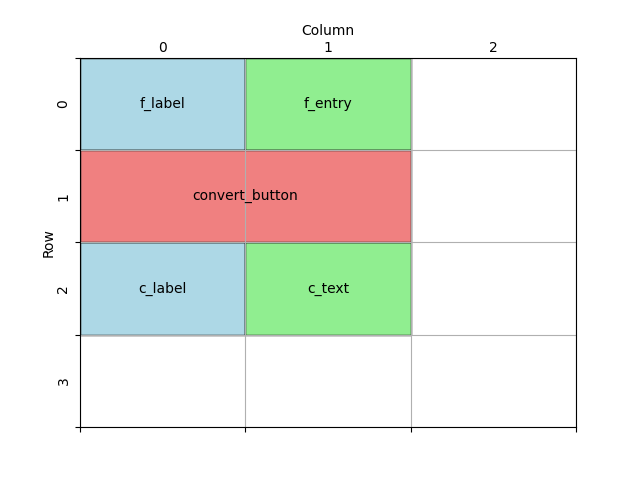
Now, place the widgets on the window using the grid layout.
# Place widgets on window
f_label.grid(row=0, column=0, sticky="e", padx=10, pady=10)
f_entry.grid(row=0, column=1, sticky="w", padx=10, pady=10)
c_label.grid(row=2, column=0, sticky="e", padx=10, pady=10)
c_text.grid(row=2, column=1, sticky="w", padx=10, pady=10)
convert_button.grid(row=1, column=0, columnspan=2, padx=10, pady=10)
2.4. Add Widget formatting
Next, add formatting to the widgets, storing colours and font settings in constants for reuse.
# Constants
WINDOW_BG_COLOR = "#ffffff"
INPUT_BG_COLOR = "#ffffff"
INPUT_FG_COLOR = "#0d6efd"
BUTTON_BG_COLOR = "#fd7e14"
BUTTON_FG_COLOR = "#ffffff"
OUTPUT_BG_COLOR = "#ffffff"
OUTPUT_FG_COLOR = "#dc3545"
FONT_STYLE = ("Arial", 32)

# Create widgets
f_label = tk.Label(root, text="Fahrenheit", bg=INPUT_BG_COLOR, fg=INPUT_FG_COLOR, font=FONT_STYLE)
f_entry = tk.Entry(root, width=10, bg=INPUT_BG_COLOR, fg=INPUT_FG_COLOR, font=FONT_STYLE)
c_label = tk.Label(root, text="Celsius", bg=OUTPUT_BG_COLOR, fg=OUTPUT_FG_COLOR, font=FONT_STYLE)
c_text = tk.Text(root, height=1, width=10, bg=OUTPUT_BG_COLOR, fg=OUTPUT_FG_COLOR, font=FONT_STYLE)
convert_button = tk.Button(root, text="Convert", width=20, bg=BUTTON_BG_COLOR,
                            fg=BUTTON_FG_COLOR, font=FONT_STYLE)
Update the window colour:
root.configure(bg=WINDOW_BG_COLOR)
2.5. Define the Conversion Function
Next, we'll add the function to convert Fahrenheit to Celsius.
def convert_f_to_c():
    """
    Converts Fahrenheit to Celsius and displays the result in the GUI.

    Reads the Fahrenheit value from the input field, performs the conversion,
    and updates the result in the output text widget.

    Raises:
        ValueError: If the input is not a valid float.
    """
    try:
        fahrenheit = float(f_entry.get())
        celsius = (fahrenheit - 32) / 1.8
        c_text.delete(1.0, "end")  # Clear any previous result
        c_text.insert(1.0, f"{celsius:.1f}")
    except ValueError:
        c_text.delete(1.0, "end")
        c_text.insert(1.0, "Invalid input.")
convert_f_to_c() uses a try and except block to catch errors due to non numeric entries.The delete method of a Text widget requires the line.column as the first argument. e.g.
1.0 in c_text.delete(1.0, 'end')tk.END or 'end' can be used as the second argument to cause the deletion to go to the end of the widget.The insert method of a Text widget requires the line.column as the first argument. e.g.
1.0 in c_text.insert(1.0, f'{celsius:.1f}')c_text.insert(1.0, f'{celsius:.1f}') uses :.1f to format the celsius float with 1 decimal place.For string formatting see: https://www.w3schools.com/python/ref_string_format.asp
2.7. Full Code
import tkinter as tk
# Constants
WINDOW_BG_COLOR = "#ffffff"
INPUT_BG_COLOR = "#ffffff"
INPUT_FG_COLOR = "#0d6efd"
BUTTON_BG_COLOR = "#fd7e14"
BUTTON_FG_COLOR = "#ffffff"
OUTPUT_BG_COLOR = "#ffffff"
OUTPUT_FG_COLOR = "#dc3545"
FONT_STYLE = ("Arial", 32)
def convert_f_to_c():
"""
Converts Fahrenheit to Celsius and displays the result in the GUI.
Reads the Fahrenheit value from the input field, performs the conversion,
and updates the result in the output text widget.
Raises:
ValueError: If the input is not a valid float.
"""
try:
fahrenheit = float(f_entry.get())
celsius = (fahrenheit - 32) / 1.8
c_text.delete(1.0, "end") # Clear any previous result
c_text.insert(1.0, f"{celsius:.1f}")
except ValueError:
c_text.delete(1.0, "end")
c_text.insert(1.0, "Invalid input.")
# Create the main window
root = tk.Tk()
root.title("Fahrenheit to Celsius Converter")
root.geometry("550x350")
root.configure(bg=WINDOW_BG_COLOR)
# Create widgets
f_label = tk.Label(root, text="Fahrenheit", bg=INPUT_BG_COLOR, fg=INPUT_FG_COLOR, font=FONT_STYLE)
f_entry = tk.Entry(root, width=10, bg=INPUT_BG_COLOR, fg=INPUT_FG_COLOR, font=FONT_STYLE)
c_label = tk.Label(root, text="Celsius", bg=OUTPUT_BG_COLOR, fg=OUTPUT_FG_COLOR, font=FONT_STYLE)
c_text = tk.Text(root, height=1, width=10, bg=OUTPUT_BG_COLOR, fg=OUTPUT_FG_COLOR, font=FONT_STYLE)
convert_button = tk.Button(root, text="Convert", width=20, bg=BUTTON_BG_COLOR,
                            fg=BUTTON_FG_COLOR, font=FONT_STYLE, command=convert_f_to_c)
# Place widgets on window
f_label.grid(row=0, column=0, sticky="e", padx=10, pady=10)
f_entry.grid(row=0, column=1, sticky="w", padx=10, pady=10)
c_label.grid(row=2, column=0, sticky="e", padx=10, pady=10)
c_text.grid(row=2, column=1, sticky="w", padx=10, pady=10)
convert_button.grid(row=1, column=0, columnspan=2, padx=10, pady=10)
# Start the main event loop
root.mainloop()
2.8. Fahrenheit to Celsius Test Table
Fahrenheit (°F) |
Expected Output (°C) |
|---|---|
32 |
0 |
212 |
100 |
0 |
-17.78 |
-459.67 (absolute zero) |
-273.15 |
one |
Invalid input |
The code rounds to 1 decimal place so its accuracy is limited by that.
The text fields have limited width so can't handle numbers with more that 9 digits.