15. tk Scale
15.1. Usage
The
tkinter.Scale widget provides a slider that allows the user to select a numeric value by dragging a slider along a horizontal or vertical bar.It is commonly used for selecting values such as volume, brightness, or percentages.
To create a scale widget, the general syntax is
(assuming import via
import tkinter as tk):- scale_widget = tk.Scale(parent, option=value)
parentis the window or frame object.Options can be passed as parameters separated by commas.A scale can be associated with a control variable such asIntVarorDoubleVarto store its current value.
15.2. Using a scale
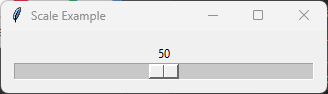
import tkinter as tk

root = tk.Tk()
root.title("Scale Example")

value = tk.IntVar(value=50)

scale = tk.Scale(
    root,
    from_=0,
    to=100,
    orient="horizontal",
    variable=value,
    length=300
)

scale.pack(padx=10, pady=10)

root.mainloop()
Tasks
Modify the code so that the scale:
is vertical,
ranges from 0 to 20,
has a length of 100 pixels,
starts at 10.
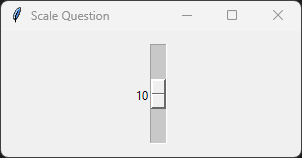
Modify the code to produce the scale shown above.
import tkinter as tk

root = tk.Tk()
root.title("Scale Question")

value = tk.IntVar(value=10)

scale = tk.Scale(
    root,
    from_=0,
    to=20,
    orient="vertical",
    variable=value,
    length=100
)

scale.pack(padx=10, pady=10)

root.mainloop()
15.3. Methods
- scale_widget.get()
- Returns the current value of the scale.
- scale_widget.set(value)
- Sets the current value of the scale.
- scale_widget.coords(value=None)
- Returns the screen coordinates of the current slider position.If
valueis supplied, returns the coordinates for that value.
- scale_widget.identify(x, y)
- Returns the name of the scale element at the specified coordinates.
- scale_widget.flash()
- Briefly flashes the widget several times.Useful for drawing the user's attention to the widget.
- scale_widget.invoke()
- Invokes the scale's command callback, if one exists.
15.4. Control variable methods
- variable.get()
- Returns the current value stored in the control variable.
- variable.set(value)
- Sets the current value stored in the control variable.The slider immediately moves to the specified position.
15.5. Parameter syntax
- scale_widget = tk.Scale(parent, option=value)
parentis the window or frame object.Options can be passed as parameters separated by commas.Parameters:
- activebackground
- Syntax:
scale_widget = tk.Scale(parent, activebackground="color")Description: Sets the slider colour while it is being dragged.Default: SystemButtonFaceExample:scale_widget = tk.Scale(root, activebackground="lightblue")
- background
- bg
- Syntax:
scale_widget = tk.Scale(parent, bg="color")Description: Sets the background colour of the widget.Default: SystemButtonFaceExample:scale_widget = tk.Scale(root, bg="white")
- bd
- Syntax:
scale_widget = tk.Scale(parent, bd=width)Description: Sets the width of the widget border.Default: 2Example:scale_widget = tk.Scale(root, bd=4)
- borderwidth
- Syntax:
scale_widget = tk.Scale(parent, borderwidth=width)Description: Sets the width of the widget border.Default: 2Example:scale_widget = tk.Scale(root, borderwidth=4)
- command
- Syntax:
scale_widget = tk.Scale(parent, command=function)Description: Calls a function whenever the slider is moved.Example:scale_widget = tk.Scale(root, command=my_function)
- cursor
- Syntax:
scale_widget = tk.Scale(parent, cursor="cursor_type")Description: Sets the mouse cursor when hovering over the widget.Default: arrowExample:scale_widget = tk.Scale(root, cursor="hand2")
- digits
- Syntax:
scale_widget = tk.Scale(parent, digits=value)Description: Specifies the number of significant digits displayed for aStringVar.Default: 0
- font
- Syntax:
scale_widget = tk.Scale(parent, font=("font", size, style))Description: Sets the font used for labels and values.Default: TkDefaultFont
- foreground
- fg
- Syntax:
scale_widget = tk.Scale(parent, fg="color")Description: Sets the text colour.Default: SystemWindowText
- from_
- Syntax:
scale_widget = tk.Scale(parent, from_=value)Description: Sets the minimum value of the scale.Default: 0
- to
- Syntax:
scale_widget = tk.Scale(parent, to=value)Description: Sets the maximum value of the scale.Default: 100
- rst id="w2kp8m"
- label
- Syntax:
scale_widget = tk.Scale(parent, label="text")Description: Displays a text label above a horizontal scale or beside a vertical scale.Default: NoneExample:scale_widget = tk.Scale(root, label="Volume")
- length
- Syntax:
scale_widget = tk.Scale(parent, length=value)Description: Sets the length of the scale in pixels.Default: 100Example:scale_widget = tk.Scale(root, length=250)
- orient
- Syntax:
scale_widget = tk.Scale(parent, orient="horizontal")Description: Specifies whether the scale is horizontal or vertical.Valid values:"horizontal","vertical"Default:"vertical"Example:scale_widget = tk.Scale(root, orient="horizontal")
- relief
- Syntax:
scale_widget = tk.Scale(parent, relief="style")Description: Sets the border style of the widget.Default:flatExample:scale_widget = tk.Scale(root, relief="groove")
- repeatdelay
- Syntax:
scale_widget = tk.Scale(parent, repeatdelay=milliseconds)Description: Specifies how long to wait before auto-repeating when the trough is held down.Default: 300Example:scale_widget = tk.Scale(root, repeatdelay=500)
- repeatinterval
- Syntax:
scale_widget = tk.Scale(parent, repeatinterval=milliseconds)Description: Specifies the time between repeated movements while the trough is held down.Default: 100Example:scale_widget = tk.Scale(root, repeatinterval=50)
- resolution
- Syntax:
scale_widget = tk.Scale(parent, resolution=value)Description: Sets the smallest increment between selectable values.Default: 1Example:scale_widget = tk.Scale(root, resolution=0.5)
- showvalue
- Syntax:
scale_widget = tk.Scale(parent, showvalue=boolean)Description: Determines whether the current value is displayed.Default: 1Example:scale_widget = tk.Scale(root, showvalue=0)
- sliderlength
- Syntax:
scale_widget = tk.Scale(parent, sliderlength=value)Description: Sets the length of the slider in pixels.Default: 30Example:scale_widget = tk.Scale(root, sliderlength=40)
- sliderrelief
- Syntax:
scale_widget = tk.Scale(parent, sliderrelief="style")Description: Sets the border style of the slider.Default:raisedExample:scale_widget = tk.Scale(root, sliderrelief="sunken")
- state
- Syntax:
scale_widget = tk.Scale(parent, state="state")Description: Specifies whether the widget is enabled.Valid values:"normal","disabled"Default:"normal"Example:scale_widget = tk.Scale(root, state="disabled")
- takefocus
- Syntax:
scale_widget = tk.Scale(parent, takefocus=1)Description: Determines whether the widget can receive keyboard focus.Default: 1Example:scale_widget = tk.Scale(root, takefocus=0)
- tickinterval
- Syntax:
scale_widget = tk.Scale(parent, tickinterval=value)Description: Displays tick marks at the specified interval.Default: 0 (no tick marks)Example:scale_widget = tk.Scale(root, tickinterval=10)
- troughcolor
- Syntax:
scale_widget = tk.Scale(parent, troughcolor="color")Description: Sets the colour of the trough behind the slider.Default: SystemButtonFaceExample:scale_widget = tk.Scale(root, troughcolor="lightgray")
- variable
- Syntax:
scale_widget = tk.Scale(parent, variable=control_variable)Description: Associates the scale with a control variable such asIntVarorDoubleVar.Default: An internal Tcl variable.Example:scale_widget = tk.Scale(root, variable=my_var)
- width
- Syntax:
scale_widget = tk.Scale(parent, width=value)Description: Sets the width of the trough in pixels.Default: 15Example:scale_widget = tk.Scale(root, width=25)
15.6. Default options
Code to display the default value for each
Scale option is shown below.import tkinter as tk
root = tk.Tk()
widget = tk.Scale(root)
widget_options = widget.keys()
for option in widget_options:
print(f"{option}: {widget.cget(option)}") # cget retrieves the current value of the option