19. tk Toplevel
19.1. Usage
The tkinter.Toplevel widget creates an additional top-level window.
A
Toplevel window behaves like a separate window but remains connected to the main Tkinter application.It is commonly used for:
* dialog boxes,* settings windows,* child application windows,* additional views.
Unlike
tk.Tk(), which normally creates the main application window, tk.Toplevel() creates extra windows.To create a top-level window the general syntax is
(assuming import via "import tkinter as tk"):
- toplevel_widget = tk.Toplevel(parent, option=value)
- parent is the main window or another widget.Options can be passed as parameters separated by commas.
19.2. Sample Toplevel
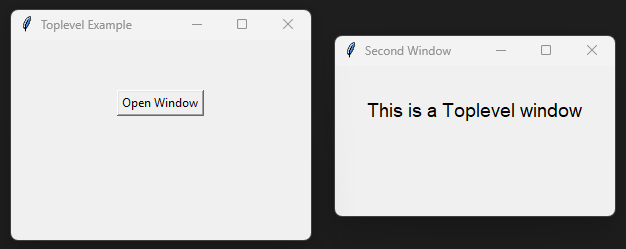
The code below creates a second window containing a label.
The second window is opened from a button in the main window.
import tkinter as tk


def open_window():
    window = tk.Toplevel(root)
    window.title("Second Window")
    window.geometry("280x150")

    label = tk.Label(
        window,
        text="This is a Toplevel window",
        font=("Arial", 14)
    )

    label.pack(pady=30)


root = tk.Tk()
root.title("Toplevel Example")
root.geometry("300x200")

button = tk.Button(
    root,
    text="Open Window",
    command=open_window
)

button.pack(pady=50)

root.mainloop()
Tasks
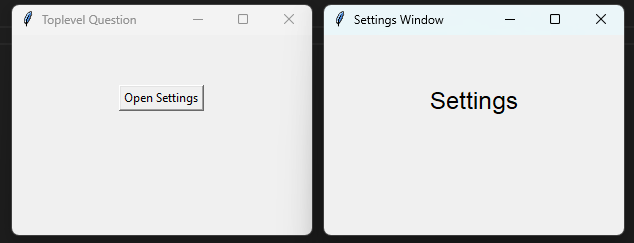
Modify the code so that pressing the button opens a new
Toplevelwindow.Set the new window title to "Settings Window".
Set the window size to
300x200.Add a label displaying "Settings".
Use an Arial font size 18 for the label.
Modify the code so that it creates the required Toplevel window.
import tkinter as tk


def open_settings():

    settings = tk.Toplevel(root)
    settings.title("Settings Window")
    settings.geometry("300x200")

    label = tk.Label(
        settings,
        text="Settings",
        font=("Arial", 18)
    )

    label.pack(pady=50)


root = tk.Tk()
root.title("Toplevel Question")
root.geometry("300x200")


button = tk.Button(
    root,
    text="Open Settings",
    command=open_settings
)

button.pack(pady=50)


root.mainloop()
19.3. Methods
- toplevel_widget.destroy()
- Closes and removes the Toplevel window.The window and all widgets inside it are destroyed.
- toplevel_widget.title(text)
- Sets the title displayed in the window title bar.Example:
window.title("Settings")
- toplevel_widget.geometry(size)
- Sets the size and optional position of the window.Example:
window.geometry("300x200")
- toplevel_widget.resizable(width, height)
- Controls whether the user can resize the window.Example:
window.resizable(False, False)
- toplevel_widget.protocol(name, function)
- Defines a callback for window manager events.Commonly used to handle the close button.Example:
window.protocol("WM_DELETE_WINDOW", function)
- toplevel_widget.withdraw()
- Temporarily hides the Toplevel window.
- toplevel_widget.deiconify()
- Restores a hidden Toplevel window.
- toplevel_widget.state()
- Returns the current state of the window.Possible values include
normal,withdrawnandiconic.
19.4. Window methods
Toplevel also supports many methods inherited from the Tk window system.- toplevel_widget.configure(option=value)
- Updates configuration options for the window.
- value = toplevel_widget.cget(option)
- Returns the current value of a configuration option.
- toplevel_widget.focus_set()
- Gives keyboard focus to the Toplevel window.
- toplevel_widget.lift()
- Raises the window above other windows.
- toplevel_widget.lower()
- Moves the window behind other windows.
- toplevel_widget.attributes(option=value)
- Changes window manager attributes.Example:
window.attributes("-topmost", True)
19.5. Parameter syntax
The main options are below.
- toplevel_widget = tk.Toplevel(parent, option=value)
Parameters:
- background
- bg
- Syntax:
toplevel_widget = tk.Toplevel(parent, bg="color")Description: Sets the background colour of the window.Default: SystemButtonFace
- borderwidth
- bd
- Syntax:
toplevel_widget = tk.Toplevel(parent, bd=width)Description: Sets the border width of the window.Default:0
- cursor
- Syntax:
toplevel_widget = tk.Toplevel(parent, cursor="cursor_type")Description: Sets the mouse cursor when over the window.
- height
- Syntax:
toplevel_widget = tk.Toplevel(parent, height=value)Description: Sets the requested height of the window.
- highlightbackground
- Syntax:
toplevel_widget = tk.Toplevel(parent, highlightbackground="color")Description: Sets the focus highlight colour when the window does not have focus.
- highlightcolor
- Syntax:
toplevel_widget = tk.Toplevel(parent, highlightcolor="color")Description: Sets the focus highlight colour when the window has focus.
- highlightthickness
- Syntax:
toplevel_widget = tk.Toplevel(parent, highlightthickness=value)Description: Sets the thickness of the focus highlight border.Default:0
- relief
- Syntax:
toplevel_widget = tk.Toplevel(parent, relief="style")Description: Sets the border style of the window.Values includeflat,raised,sunken,ridgeandgroove.
- takefocus
- Syntax:
toplevel_widget = tk.Toplevel(parent, takefocus=True)Description: Determines whether the window can receive keyboard focus.
- width
- Syntax:
toplevel_widget = tk.Toplevel(parent, width=value)Description: Sets the requested width of the window.
19.6. Default options
Code to display the default value for each
Toplevel option is shown below.import tkinter as tk
root = tk.Tk()
widget = tk.Toplevel(root)
widget_options = widget.keys()
for option in widget_options:
print(f"{option}: {widget.cget(option)}")