6. tk Frame
6.1. Usage
The tkinter.Frame widget acts as a container for other widgets.
To create a frame widget the general syntax is
(assuming import via "import tkinter as tk"):
- frame_widget = tk.Frame(parent, option=value)
- parent is the window or frame object.Options can be passed as parameters separated by commas.
6.2. Sample Frame
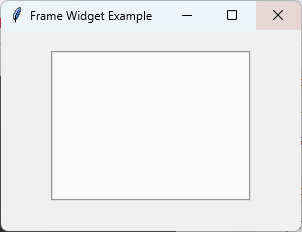
The code below creates a frame with a specific border style and size.
The background color is set to a light gray so it can be easily seen.
The border is set to 2 pixels.
The relief is set to "groove" so it can be easily seen as there is no border colour setting.
The internalpadding is set to 10 pixels on all sides.
import tkinter as tk

root = tk.Tk()
root.title("Frame Widget Example")
root.geometry("300x200")

# Creating a frame with specified options
frame = tk.Frame(
    root,
    bg="#f9f9f9",
    bd=2,
    relief="groove",
    width=200,
    height=150,
    padx=10,
    pady=10
)

frame.pack(padx=20, pady=20)
root.mainloop()
Tasks
Modify the code so that it creates a
Framewith the following settings:Set the background colour to
light blue.Set the border width to 4 pixels.
Use a
ridgeborder style.Set the frame size to 220 pixels wide and 120 pixels high.
Add internal padding of 15 pixels horizontally and vertically.
Display the frame with 30 pixels of external padding.

Modify the code so that it creates a Frame with the required settings.
import tkinter as tk

# Create the main window
root = tk.Tk()
root.title("Frame Question")
root.geometry("350x250")

# Create the Frame
frame = tk.Frame(
    root,
    bg="light blue",
    bd=4,
    relief="ridge",
    width=220,
    height=120,
    padx=15,
    pady=15
)

# Display the Frame
frame.pack(
    padx=30,
    pady=30
)

# Run the main event loop
root.mainloop()
6.3. Parameter syntax
The main options are below.
Note
The width and height options only specify the requested size.
If the frame contains widgets, it will normally resize itself to fit them.
To force the frame to keep its specified size, disable geometry propagation.
frame.pack_propagate(False)
# or
frame.grid_propagate(False)
- frame_widget = tk.Frame(parent, option=value)
Parameters:
- background
- bg
- Syntax:
frame_widget = tk.Frame(parent, bg="color")Description: Sets the background color of the frame.Default: SystemButtonFace RGB: (240, 240, 240)
- borderwidth
- bd
- Syntax:
frame_widget = tk.Frame(parent, bd=width)Description: Sets the width of the frame's border.Default:0
- cursor
- Syntax:
frame_widget = tk.Frame(parent, cursor="cursor_type")Description: Changes the mouse cursor when it hovers over the frame.
- height
- Syntax:
frame_widget = tk.Frame(parent, height=height_in_pixels)Description: Sets the height of the frame in pixels.Default:0
- highlightbackground
- Syntax:
frame_widget = tk.Frame(parent, highlightbackground="color")Description: Sets the color of the focus highlight when the frame does not have focus.
- highlightcolor
- Syntax:
frame_widget = tk.Frame(parent, highlightcolor="color")Description: Sets the color of the focus highlight when the frame has focus.
- highlightthickness
- Syntax:
frame_widget = tk.Frame(parent, highlightthickness=thickness)Description: Sets the thickness of the focus highlight.Default:0
- padx
- Syntax:
frame_widget = tk.Frame(parent, padx=padding)Description: Sets the horizontal padding to add inside the frame.
- pady
- Syntax:
frame_widget = tk.Frame(parent, pady=padding)Description: Sets the vertical padding to add inside the frame.
- relief
- Syntax:
frame_widget = tk.Frame(parent, relief="relief_type")Description: Sets the border style of the frame. Values include "flat", "raised", "sunken", "ridge", "solid", "groove".Default:"flat"
- takefocus
- Syntax:
frame_widget = tk.Frame(parent, takefocus=True)Description: Determines whether the frame can receive keyboard focus during focus traversal (for example, when pressing the Tab key).Default:0
- width
- Syntax:
frame_widget = tk.Frame(parent, width=width_in_pixels)Description: Sets the width of the frame in pixels.Default:0
6.4. Default options
Code to display the default value for each
Frame option is shown below.import tkinter as tk
root = tk.Tk()
widget = tk.Frame(root)
widget_options = widget.keys()
for option in widget_options:
print(f"{option}: {widget.cget(option)}") # cget retrieves the current value of the option