5. Jokes
5.1. Files
The files used are listed below.
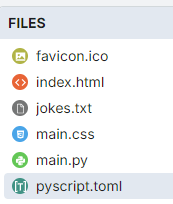
The favicon.ico is optional. It shows as a small icon in the browser tab when the app is run.
5.2. toml configuration file
name = "Jokes"
description = "A simple jokes app."

[files]
"./jokes.txt" = "jokes.txt"
5.3. index.html
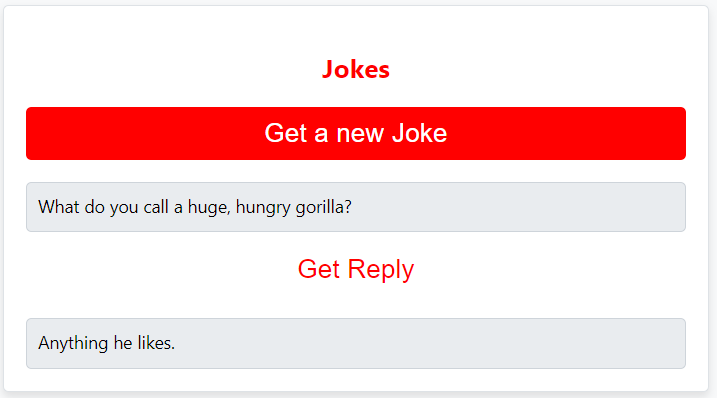
Buttons: Several buttons to interact with the jokes:
Get a new Joke: To fetch and display a new joke.
Get Reply: To fetch and display the reply to the joke.
Output Areas:
Loading Dialog: Displays a loading message while the PyScript is initializing.
Joke Display: An area to show the fetched joke.
Joke Reply Display: An area to show the reply to the joke.
<link rel="icon" href="favicon.ico" type="image/x-icon"> uses the favicon.ico placed in the files section in the pyscript editor so it shows in a browser tab.<!DOCTYPE html>
<html lang="en">
<head>
<title>Jokes</title>
<!-- Recommended meta tags -->
<meta charset="UTF-8">
<meta name="viewport" content="width=device-width,initial-scale=1.0">
<!-- favicon to appear in browser tab -->
<link rel="icon" href="favicon.ico" type="image/x-icon">
<!-- PyScript CSS -->
<link rel="stylesheet" href="https://pyscript.net/releases/2025.11.2/core.css">
<!-- This script tag bootstraps PyScript -->
<script type="module" src="https://pyscript.net/releases/2025.11.2/core.js"></script>
<!-- custom CSS only -->
<link rel="stylesheet" href="main.css">
<!-- for splashscreen -->
<style>
#loading { outline: none; border: none; background: transparent }
</style>
<script type="module">
const loading = document.getElementById('loading');
addEventListener('py:ready', () => loading.close());
loading.showModal();
</script>
</head>
<body>
<dialog id="loading">
    <h1>Loading...</h1>
</dialog>
<section class="jokes">
<h1>Jokes</h1>
<div>
<button id="get_joke">Get a new Joke</button>
</div>
<div id="joke"></div>
<div>
<button id="get_joke_answer">Get Reply</button>
</div>
<div id="joke_answer"></div>
<script type="py" src="./main.py" config="./pyscript.toml"></script>
</section>
</body>
</html>
5.4. loading html
This code snippet displays a loading dialog while PyScript is initializing. Once PyScript is ready, the loading dialog closes, providing users with a visual indication that the page is loading and preventing interaction until everything is ready.
5.4.1. HTML Structure and Styles
<dialog id="loading">
<h1>Loading...</h1>
</dialog>
This
dialogelement displays the loading message.The
id="loading"allows it to be easily accessed and manipulated via JavaScript.
<style>
    #loading { outline: none; border: none; background: transparent }
</style>
outline: none: Removes any outline around the dialog when focused.
border: none: Removes any border around the dialog.
background: transparent: Makes the background of the dialog transparent.
5.4.2. JavaScript for Splash Screen
The HTML page loads and the
<dialog>element with "Loading..." is displayed usingloading.showModal().The page continues to load, and PyScript initializes.
Once PyScript is fully loaded, it triggers the
py:readyevent.The event listener for
py:readyactivates, andloading.close()closes the loading dialog.
<script type="module">
    const loading = document.getElementById('loading');
    addEventListener('py:ready', () => loading.close());
    loading.showModal();
</script>
<script type="module">: Indicates the script is an ES6 module.
     const loading = document.getElementById('loading');

- This retrieves the dialog element with the id ``loading`` and stores it in the ``loading`` variable.
addEventListener('py:ready', () => loading.close());
addEventListener('py:ready', ...): Listens for thepy:readyevent, triggered by PyScript once initialized.loading.close(): Closes the loading dialog when thepy:readyevent is triggered.
loading.showModal();
Shows the loading dialog as a modal, preventing user interaction with the page until closed.
5.5. main css:
The custom css is below.
body {
    background-color: #f8f9fa; /* light background */
    font-family: 'Segoe UI', Tahoma, Geneva, Verdana, sans-serif;
    font-size: 16px;
}

.jokes {
    max-width: 600px;
    margin: 50px auto;
    padding: 20px;
    background-color: #ffffff; /* White background */
    border: 1px solid #dee2e6; /* border */
    border-radius: 5px;
    box-shadow: 0 4px 8px rgba(0, 0, 0, 0.1);
}

.jokes h1 {
    color: #ff0000;
    text-align: center;
    margin-bottom: 20px;
}

.jokes button {
    display: block;
    width: 100%;
    padding: 10px;
    margin: 10px 0;
    color: #ffffff;
    border: none;
    border-radius: 5px;
    cursor: pointer;
    transition: background-color 0.3s;
    font-size: 24px;
}

/* First button */
#get_joke {
    background-color: #ff0000; /* Santa red */
}

#get_joke:hover {
    background-color: #cc0000; /* Darker red */
}

/* Second button */
#get_joke_answer {
    background-color: #ffffff; /* White */
    color: #ff0000; /* Red text */
}

#get_joke_answer:hover {
    background-color: #f0f0f0; /* Slightly darker white */
    color: #cc0000; /* Darker red text */
}
#joke, #joke_answer {
    margin-top: 20px;
    min-height: 24px;
    padding: 10px;
    background-color: #e9ecef; /* light gray background */
    border-radius: 5px;
    border: 1px solid #ced4da; /* border color */
}
5.6. main.py
from pyscript import document
from pyscript import display
from pyscript import when
import os
import random

# Function to convert Question tab Answer formatted text into a dictionary
def convert_to_dict(file_path):
    qa_dict = {}
    if os.path.exists(file_path):
        with open(file_path, 'r') as file:
            for line in file:
                if '\t' in line:
                    question, answer = line.strip().split('\t', 1)
                    qa_dict[question] = answer
    else:
        print(f"File not found: {file_path}")
    return qa_dict

# Load the text file from the pyscript files folder
file_path = 'jokes.txt'
qa_dict = convert_to_dict(file_path)

joke = None
joke_answer = None

def get_joke_from_dict():
    global joke, joke_answer
    joke, joke_answer = random.choice(list(qa_dict.items()))
    print(joke,joke_answer)
    return joke

@when('click', '#get_joke')
def get_joke(event):
    joke = get_joke_from_dict()
    display(joke, target="#joke", append=False)

@when('click', '#get_joke_answer')
def get_joke_answer(event):
    global joke_answer
    display(joke_answer, target="#joke_answer", append=False)