6. Name and age
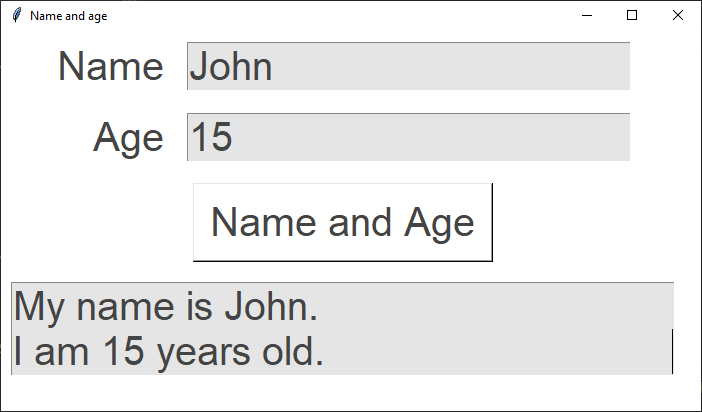
6.1. Code summary
6.2. Create the main window:
root = tk.Tk()creates the main application root.
root.title("Name and age")sets the title of the window to "Name and age".
root.geometry('700x380')specifies the initial size of the window (700 pixels wide and 380 pixels tall).
root.configure(bg="#ffffff")sets the background color of the window to white.import tkinter as tk root = tk.Tk() root.title("Name and age") root.geometry("700x380") root.configure(bg="#ffffff") root.mainloop()
6.3. Create the widgets
Define some constants for colors and font style for the GUI.
BG_COLOR = "#ffffff"
FG_COLOR = "#444444"
BG_TEXT_COLOR = "#e5e5e5"
FONT_STYLE = ("Arial", 30)
Update the window colour using the constant:
root.configure(bg=BG_COLOR)
Create several widgets (GUI elements) that will be displayed in the window:
The Labels
name_labelandage_labeldisplay the text "Name" and "Age".The Entry fields
name_entryandage_entryallow users to input their name and age.The "Name and Age" button
name_age_buttontriggers theplace_name_agefunction.A text widget
name_age_textdisplays the resulting sentences with the name and age.
name_label = tk.Label(root, text="Name", bg=BG_COLOR, fg=FG_COLOR, font=FONT_STYLE)
age_label = tk.Label(root, text="Age", bg=BG_COLOR, fg=FG_COLOR, font=FONT_STYLE)
name_entry = tk.Entry(root, bg=BG_TEXT_COLOR, fg=FG_COLOR, font=FONT_STYLE)
age_entry = tk.Entry(root, bg=BG_TEXT_COLOR, fg=FG_COLOR, font=FONT_STYLE)
name_age_button = tk.Button(root, text="Name and Age", bg=BG_COLOR, fg=FG_COLOR,
                            font=FONT_STYLE, command=place_name_age)
name_age_text = tk.Text(root, height=2, width=30, bg=BG_TEXT_COLOR, fg=FG_COLOR, font=FONT_STYLE)
6.4. Grid Placement of widgets on the window:
Design the grid positions:

Use the grid method to place the widgets in rows and columns in the root.
The row and column parameters determine the position of each widget.
The labels and entry fields are placed in rows 0 and 1.
The button and text widget are placed in row 2 and 3.
The sticky='e' option specifies that the widget should stick to the east (right) side of its grid cell.
This means that if the cell is larger than the widget, the widget will be right-aligned within the cell.
name_label.grid(row=0, column=0, sticky="e", padx=10, pady=10)
name_entry.grid(row=0, column=1, sticky="w", padx=10, pady=10)
age_label.grid(row=1, column=0, sticky="e", padx=10, pady=10)
age_entry.grid(row=1, column=1, sticky="w", padx=10, pady=10)
name_age_button.grid(row=2, column=0, columnspan=2, padx=10, pady=10)
name_age_text.grid(row=3, column=0, columnspan=2, padx=10, pady=10)
6.5. Define the place_name_age function:
This function is called when the "Name and Age" button is clicked.
It retrieves the values entered in the name and age entry fields.
name = name_entry.get()uses theget()method to get the text value of the Entry widget.If no name is entered, it defaults to "John". If no age is entered, it defaults to "16".
It clears the existing text in the
name_age_textwidget.The delete method of a Text widget requires the line.column as the first argument.
e.g. line 1, character 0 using
1.0inname_age_text.delete(1.0, 'end').tk.ENDor'end'can be used as the second argument to cause the deletion to go to the end of the widget.It inserts a formatted string (f-string) into the
name_age_textwidget, displaying the name and age.The insert method of a Text widget requires the line.column as the first argument.
e.g.
1.0inname_age_text.insert(1.0, 'new text').f'My name is {name}. \nI am {age} years old.'uses\nfor a line break so the 2 sentences are on two lines.
def place_name_age():
    name = name_entry.get()
    # use a default name if no name is given
    if name == "":
        name = "John Smith"
    # get age
    age = age_entry.get()
    # use a default age if no age is given
        if age == "":
        age = "16"
    name_age_text.delete(1.0, "end")
    name_age_text.insert(1.0, f"My name is {name}. \nI am {age} years old.")
6.6. Full code
import tkinter as tk

# Constants
BG_COLOR = "#FFFFFF"
FG_COLOR = "#444444"
BG_TEXT_COLOR = "#e5e5e5"
FONT_STYLE = ("Arial", 30)


def place_name_age():
    """
    Retrieves the name and age from the respective entry widgets and displays them
    in a formatted message within the text widget. If no name or age is provided,
    default values are used.

    The function performs the following steps:
    1. Retrieves the name from the name_entry widget. If empty, defaults to "John Smith".
    2. Retrieves the age from the age_entry widget. If empty, defaults to "16".
    3. Clears the content of the name_age_text widget.
    4. Inserts a formatted message into the name_age_text widget, displaying the name and age.

    Example output:
    "My name is John Smith.
    I am 16 years old."
    """
    # get name
    name = name_entry.get()
    # use a default name if no name is given
    if name == "":
        name = "John Smith"
    # get age
    age = age_entry.get()
    # use a default age if no age is given
    if age == "":
        age = "16"
    # clear name_age_text 1.0 represents line.column or line 1 character 0, tk.END or 'end' can be used.
    name_age_text.delete(1.0, "end")
    # insert name age using f string, \n is a line break;
    name_age_text.insert(1.0, f"My name is {name}. \nI am {age} years old.")


# Create the main window
root = tk.Tk()
root.title("Name and age")
root.geometry("700x380")
root.configure(bg=BG_COLOR)

#  create widgets
name_label = tk.Label(root, text="Name", bg=BG_COLOR, fg=FG_COLOR, font=FONT_STYLE)
age_label = tk.Label(root, text="Age", bg=BG_COLOR, fg=FG_COLOR, font=FONT_STYLE)
name_entry = tk.Entry(root, bg=BG_TEXT_COLOR, fg=FG_COLOR, font=FONT_STYLE)
age_entry = tk.Entry(root, bg=BG_TEXT_COLOR, fg=FG_COLOR, font=FONT_STYLE)
name_age_button = tk.Button(root, text="Name and Age", bg=BG_COLOR,
                            fg=FG_COLOR, font=FONT_STYLE, command=place_name_age)
# Text widget height=2 where height is in text rows.
name_age_text = tk.Text(root, height=2, width=30, bg=BG_TEXT_COLOR, fg=FG_COLOR, font=FONT_STYLE)

# place widgets on window
name_label.grid(row=0, column=0, sticky="e", padx=10, pady=10)
name_entry.grid(row=0, column=1, sticky="w", padx=10, pady=10)
age_label.grid(row=1, column=0, sticky="e", padx=10, pady=10)
age_entry.grid(row=1, column=1, sticky="w", padx=10, pady=10)
name_age_button.grid(row=2, column=0, columnspan=2, padx=10, pady=10)
name_age_text.grid(row=3, column=0, columnspan=2, padx=10, pady=10)

# Start the main event loop
root.mainloop()