9. Modify via checkbox

9.1. Required Syntax
- class BooleanVar
- Syntax:
bool_var = tk.BooleanVar()Description: Creates a Tkinter variable for holding boolean data.Default: NoneExample:bool_var = tk.BooleanVar()
- get()
- Syntax:
current_value = text_var.get()Description: Retrieves the current value of the StringVar.Default: NoneExample:current_value = text_var.get()
- set()
- Syntax:
text_var.set("New Value")Description: Sets the value of the StringVar to the specified string.Default: NoneExample:text_var.set("Hello, World!")
- variable
- Syntax:
widget = tk.Checkbutton(parent, text="label", variable=variable, command=callback_function)Description: Associates a Tkinter variable with the checkbutton state.Default: NoneExample:toggle_checkbutton = tk.Checkbutton(root, text="Blue Label", variable=bool_var, command=toggle_label_color)
- command
- Syntax:
button_widget = tk.Button(parent, command=callback_function)Description: Specifies the function to be called when the button is clicked.Default:NoneExample:button_widget = tk.Button(root, command=on_click)
9.1.1. Code example
The checkbox toggles the label color between blue and black.
Using BooleanVar:
bool_var = tk.BooleanVar(): Creates a BooleanVar instance.
bool_var.set(False): Sets the initial value of bool_var to False.
Defining the Toggle Function:
def toggle_label_color(): Defines a function to toggle the color of the label.
if bool_var.get(): Checks the current value of bool_var. For BooleanVar variables, the returned value is 0 for False, and 1 for Ttrue. Since it is True or False there is no need for a test with ==.
label.config(fg="blue"): Sets the label color to blue if bool_var is True.
label.config(fg="black"): Sets the label color to black if bool_var is False.
Creating the Checkbutton:
toggle_checkbutton = tk.Checkbutton(root, text="Blue Label", variable=bool_var, command=toggle_label_color): Creates a checkbox to toggle the label color between blue and black.
The BooleanVar instance (bool_var) holds the state of the checkbox (checked or unchecked). This is called State Management.
When the checkbox is checked or unchecked, the value of bool_var is automatically updated to True or False, respectively.
In this example, variable=bool_var ensures that the checkbox and the BooleanVar are synchronized, allowing the toggle_label_color function to correctly change the label's color based on the checkbox state. Without this parameter, the checkbox would not be able to communicate its state to the BooleanVar, and the label color would not update as expected.
import tkinter as tk


# Function to toggle the label color
def toggle_label_color():
    if bool_var.get():
        label.config(fg="blue")  # Set label color to blue
    else:
        label.config(fg="black")  # Set label color to black


# Create the main window
root = tk.Tk()
root.geometry("400x100")
root.title("Toggle via checkbox Example")

# Create a BooleanVar to hold the boolean value
bool_var = tk.BooleanVar()
bool_var.set(False)  # Initial value

# Create a Checkbutton to toggle the label color
toggle_checkbutton = tk.Checkbutton(root, text="Blue Label", variable=bool_var, command=toggle_label_color)
toggle_checkbutton.grid(row=0, column=0, padx=10, pady=20)

# Create a Label widget
label = tk.Label(root, text="Text to colour", font=("Helvetica", 16), fg="black")
label.grid(row=0, column=1, pady=20)

# Run the application
root.mainloop()
9.2. cget method for text
- text
- Syntax:
text=label.cget("text")Description: Retrieves the current text of the label widget. The cget method is used to get the value of the specified configuration option, in this case, the text.Default: The default value is the initial text set for the label.Example:current_text = label.cget("text")
Tasks
Modify the code to toggle the case as well as colour using
text=label.cget("text").upper().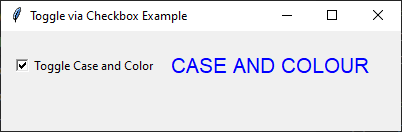
Modify the code to toggle the case as well as colour.
import tkinter as tk


# Function to toggle the label color and case
def toggle_label():
    if bool_var.get():
        label.config(fg="blue", text=label.cget("text").upper())  # Set label color to blue and text to uppercase
    else:
        label.config(fg="black", text=label.cget("text").lower())  # Set label color to black and text to lowercase


# Create the main window
root = tk.Tk()
root.geometry("400x100")
root.title("Toggle via Checkbox Example")

# Create a BooleanVar to hold the boolean value
bool_var = tk.BooleanVar()
bool_var.set(False)  # Initial value

# Create a Checkbutton to toggle the label color and case
toggle_checkbutton = tk.Checkbutton(root, text="Toggle Case and Color", variable=bool_var, command=toggle_label)
toggle_checkbutton.grid(row=0, column=0, padx=10, pady=20)

# Create a Label widget
label = tk.Label(root, text="Case and Colour", font=("Helvetica", 16), fg="black")
label.grid(row=0, column=1, pady=20)

# Run the application
root.mainloop()
9.3. Binary
- bin()
- Syntax:
bin(x)Description: Converts an integer number to a binary string prefixed with "0b". The result is a string representing the binary value of the given integer.Default: There is no default value; the function requires an integer argument.Example:binary_representation = bin(127)results inbinary_representationbeing'0b1111111'.
Tasks
Modify the code to toggle the number 9 with its binary version (as well as colour).

Modify the code to toggle the number 9 with its binary version (as well as colour).
import tkinter as tk


# Function to toggle the label between decimal and binary
def toggle_label():
    if bool_var.get():
        label.config(fg="blue", text=bin(9)[2:])  # omit leading "0b"
    else:
        label.config(fg="black", text="9")  # Set label color to black and text to decimal


# Create the main window
root = tk.Tk()
root.geometry("400x100")
root.title("Toggle Binary via Checkbox Example")

# Create a BooleanVar to hold the boolean value
bool_var = tk.BooleanVar()
bool_var.set(False)  # Initial value

# Create a Checkbutton to toggle the label between decimal and binary
toggle_checkbutton = tk.Checkbutton(root, text="Toggle Binary", variable=bool_var, command=toggle_label)
toggle_checkbutton.grid(row=0, column=0, padx=10, pady=20)

# Create a Label widget
label = tk.Label(root, text="9", font=("Helvetica", 16), fg="black")
label.grid(row=0, column=1, pady=20)

# Run the application
root.mainloop()