2. Label textvariable: toggle text
2.1. Toggle text via button
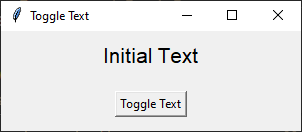

A StringVar is created to hold the label's text:
text_var = tk.StringVar().The set method initializes the text:
text_var.set("Initial Text").The get method retrieves the current text:
current_value = text_var.get().A label is associated with the StringVar:
label = tk.Label(root, textvariable=text_var).A button is created with a command to toggle the text:
button = tk.Button(root, command=update_text).The update_text function checks the current value of text_var and toggles it using
set.Clicking the button triggers the command to update the label's text.
2.1.1. Required Syntax
- class StringVar
- Syntax:
text_var = tk.StringVar()Description: Creates a Tkinter variable for holding string data.Default: NoneExample:text_var = tk.StringVar()
- set()
- Syntax:
text_var.set("New Value")Description: Sets the value of theStringVarto the specified string.Default: NoneExample:text_var.set("Hello, World!")
- get()
- Syntax:
current_value = text_var.get()Description: Retrieves the current value of theStringVar.Default: NoneExample:current_value = text_var.get()
- textvariable
- Syntax:
label_widget = tk.Label(parent, textvariable=variable)Description: Associates a Tkinter variable with the label text. If the variable is changed, the label text is updated.Default: NoneExample:label_widget = tk.Label(root, textvariable=my_var)
- command
- Syntax:
button_widget = tk.Button(parent, command=callback_function)Description: Specifies the function to be called when the button is clicked.Default:NoneExample:button_widget = tk.Button(root, command=on_click)
2.1.2. Code features
Create a variable: StringVar:
text_var = tk.StringVar(): Creates aStringVarinstance,text_var, which is a special tkinter variable for holding string data.text_var.set("Initial Text"): Sets the initial value oftext_var.
Link variable to Label with textvariable:
label = tk.Label(root, textvariable=text_var, font=("Helvetica", 16)): Creates a label in thewindowroot.The
textvariableparameter is linked totext_var, so the label text displaystext_var's value.
Define the Function:
def update_text(): Defines a function,update_text, that getstext_var's current value usingtext_var.get().It toggles
text_varbetween "Initial Text" and "Updated Text" by usingtext_var.set().
Set Button command:
button = tk.Button(root, text="Toggle Text", command=update_text): Creates a button with the label "Toggle Text" and setsupdate_textas the function that runs when clicked.
2.1.3. Code
import tkinter as tk


# Function to update the text
def update_text():
    if text_var.get() == "Initial Text":
        text_var.set("Updated Text")
    else:
        text_var.set("Initial Text")


# Create the main window
root = tk.Tk()
root.geometry("300x100")
root.title("Toggle Text")

# Create a StringVar to hold the text
text_var = tk.StringVar()
text_var.set("Initial Text")

# Create a Label widget with textvariable
label = tk.Label(root, textvariable=text_var, font=("Helvetica", 16))
label.pack(pady=10)

# Create a Button to trigger the text update
button = tk.Button(root, text="Toggle Text", command=update_text)
button.pack(pady=10)

# Run the application
root.mainloop()
Tasks
- Write code to reverse a string entered by a user into an entry field, using an input_var and an output_var.

- Modify the previous answer to insert a random palindrome if the entry string is blank.

Write code to reverse a string entered by a user into an entry field, using an input_var and an output_var.
import tkinter as tk


# Function to transform the text
def transform_text():
    user_input = input_var.get()
    if user_input:
        # reverse
        reversed_text = user_input[::-1]
        output_var.set(reversed_text)
    else:
        output_var.set("Please enter a string.")


# Create the main window
root = tk.Tk()
root.geometry("300x200")
root.title("String Reverser")

# Create a StringVar to hold the user input
input_var = tk.StringVar()

# Create a Label and Entry for user input
input_label = tk.Label(root, text="Enter a string:", font=("Helvetica", 12))
input_label.pack(pady=5)
input_entry = tk.Entry(root, textvariable=input_var, font=("Helvetica", 12))
input_entry.pack(pady=5)

# Create a Button to trigger the text Reversal
button = tk.Button(root, text="Reversed Text", command=transform_text)
button.pack(pady=5)

# Create a StringVar to hold the transformed text
output_var = tk.StringVar()
output_var.set("")

# Create a Label widget with textvariable for the output
output_result = tk.Label(root, textvariable=output_var, font=("Helvetica", 12))
output_result.pack(pady=5)

# Run the application
root.mainloop()
Modify the previous answer to insert a random palindrome if the entry string is blank.
import tkinter as tk
import random

# List of palindromes
palindromes = [
    "aibohphobia", "civic", "deified", "kayak", "level", "madam", "minim", "noon",
    "racecar", "radar", "refer", "repaper", "reviver", "rotator", "rotor", "sagas",
    "solos", "stats", "tenet", "wow"
]


# Function to transform the text
def transform_text():
    user_input = input_var.get()
    if user_input:
        # Reverse the user input
        reversed_text = user_input[::-1]
        output_var.set(reversed_text)
    else:
        # Use a random palindrome if no input is provided
        random_palindrome = random.choice(palindromes)
        input_var.set(random_palindrome)
        output_var.set(random_palindrome)


# Create the main window
root = tk.Tk()
root.geometry("300x200")
root.title("String Reverser")

# Create a StringVar to hold the user input
input_var = tk.StringVar()

# Create a Label and Entry for user input
input_label = tk.Label(root, text="Enter a string:", font=("Helvetica", 12))
input_label.pack(pady=5)
input_entry = tk.Entry(root, textvariable=input_var, font=("Helvetica", 12))
input_entry.pack(pady=5)

# Create a Button to trigger the text reversal
button = tk.Button(root, text="Reverse Text", command=transform_text)
button.pack(pady=20)

# Create a StringVar to hold the transformed text
output_var = tk.StringVar()
output_var.set("")

# Create a Label widget with textvariable for the output
output_result = tk.Label(root, textvariable=output_var, font=("Helvetica", 12))
output_result.pack(pady=5)

# Run the application
root.mainloop()